Voice and video calls in Exchange and Orbit
Talk through campaign questions or team tasks inside your workspace, with control over your microphone and camera.
Choose the person you want to call
- In Exchange, open Messages and select an existing trading conversation. With calling enabled, eligible owners can call an owner from the other organisation.
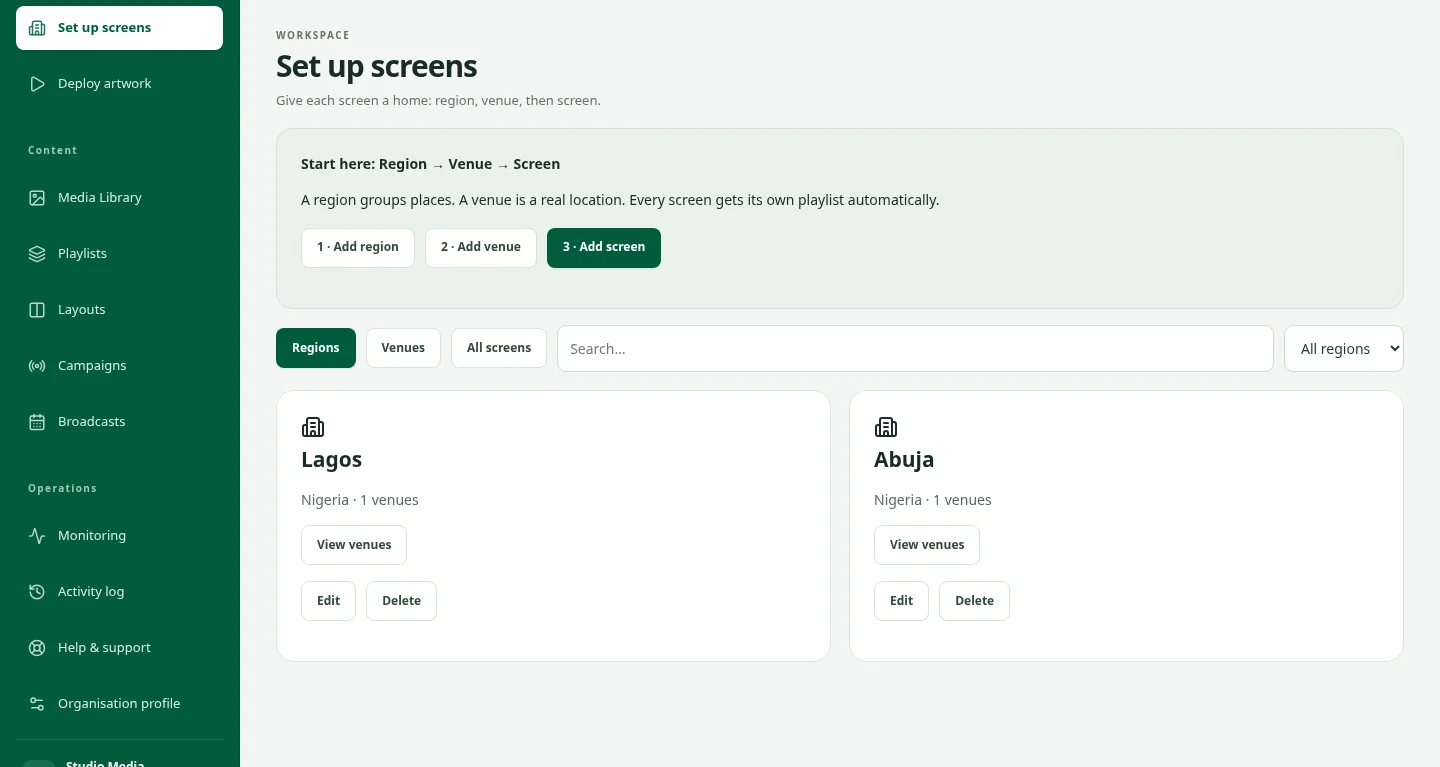
- In Orbit, open Workspace → Team calls and select a confirmed teammate from your own organisation.
- Keep the relevant workspace open to receive incoming calls. Choose Enable call sounds if you want your browser to play the ringtone.
Start or answer a call
- Select Voice call or Video call. Allow microphone access and, for video, camera access when your browser asks.
- The recipient chooses Accept or Decline. Their devices are not opened merely because a call arrives.
- If you do not see the calling controls you expect, ask DOOXOOH or your organisation owner about access for your workspace.
Stay in control during the conversation
- Choose Mute or Unmute to control your microphone. In a video call, use Camera off or Camera on.
- Use Minimize call to continue working, then Open call to return to the controls.
- If the browser blocks received sound, select Play call audio. Choose End call when the conversation is finished.
If the connection needs attention
- Check your internet connection and browser device permissions. Use headphones when two devices are close together.
- If the call disconnects, use Join call when it is available or end the call and start again.
- A call is between two people. Finish the current call before starting another.