
Bring the campaign to the screen.
Connect Android, Windows or Linux devices to DOOXOOH for scheduled digital signage and eligible advertising bookings.
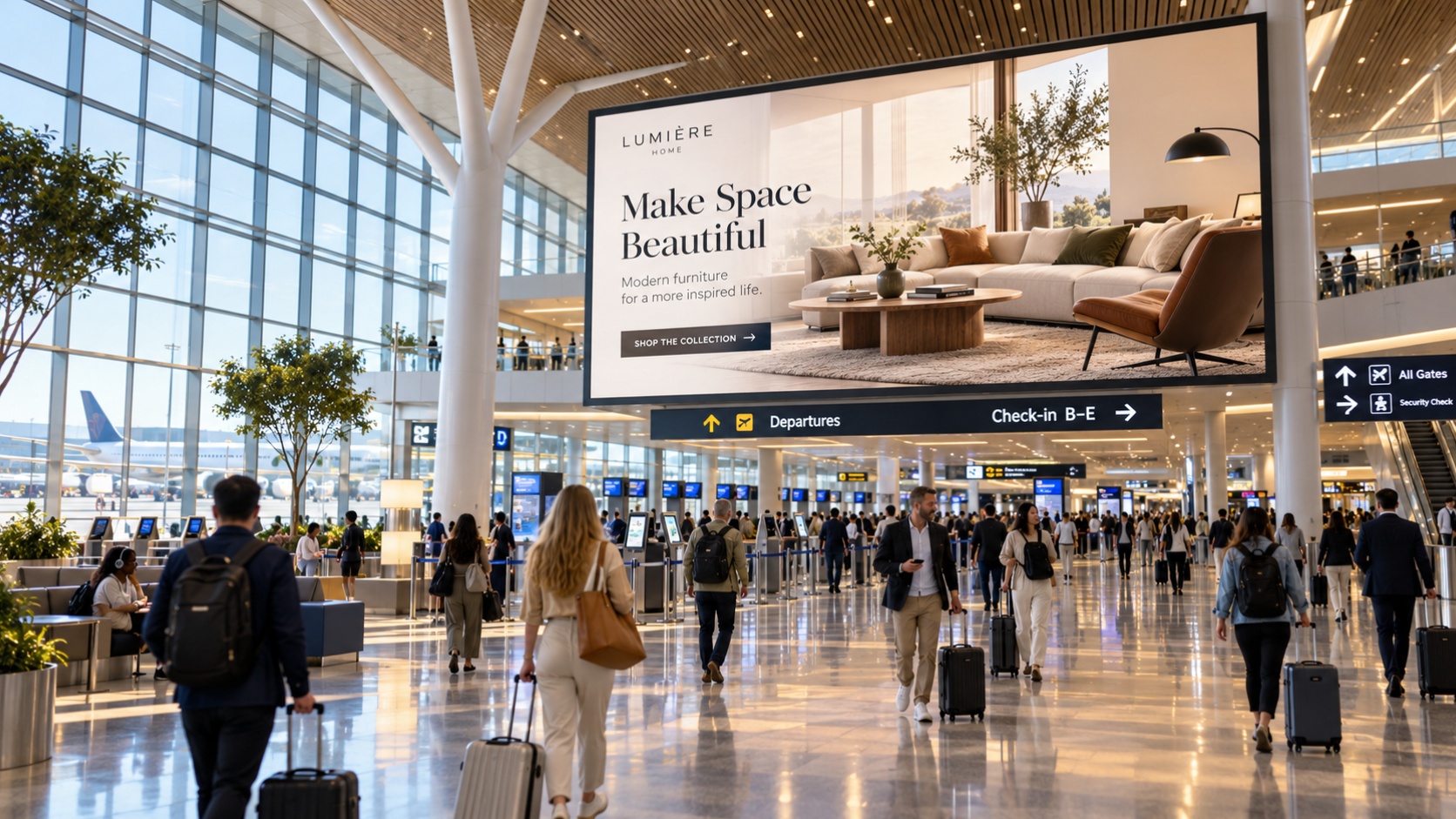
Connect, pair and publish.
Install the appropriate player, pair it with a screen in the CMS and publish its content. The screen record helps your team check connection status and downloaded content.
Plan for the actual device.
Screen orientation, video support, audio output and startup behaviour depend on the device and operating system. Test your content on the intended display before rolling it out across a network.
Keep content ready.
Downloaded supported artwork can continue to play when the connection is interrupted. Live streams need internet and use their configured fallback on failure. Remote updates arrive when the player reconnects.
Play booked advertising time.
Compatible players receive reserved adverts alongside everyday content, preserve supporting layout zones and report playback events. Downloaded eligible bookings can continue offline; reports upload on reconnection. New bookings and changes require a successful sync.
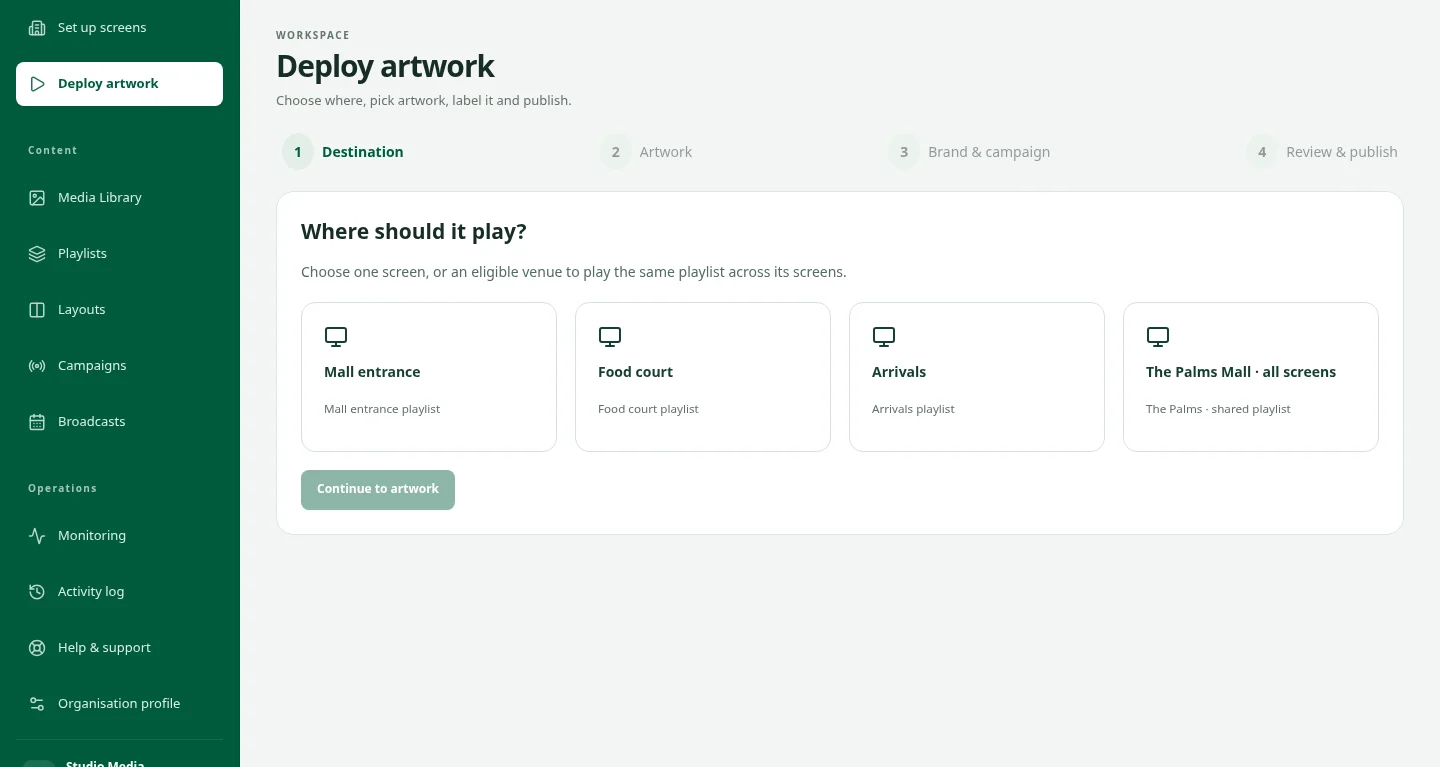
FROM YOUR DESK TO THE DISPLAY
Give your artwork somewhere to go.
The idea is ready. Now choose the screens, organise the playback and keep the campaign in view. See how the pieces fit together in a private CMS demo.
Take a closer lookGood questions. Clear answers.
Will the player turn any television on or off?
Hardware controls vary. Do not assume universal television power, HDMI-CEC or operating-system privileges. Confirm the actual device requirements during setup.
How do I get the right installer?
Contact the team for the current tested release and installation guidance for your operating system.
Start a conversation.
Tell us what you have in mind.