
From finding media to following your campaign.
Learn how to browse DOOXOOH advertising inventory, register as a buyer, use campaign briefs, compare prices and continue into Exchange.
Marketplace and Exchange.
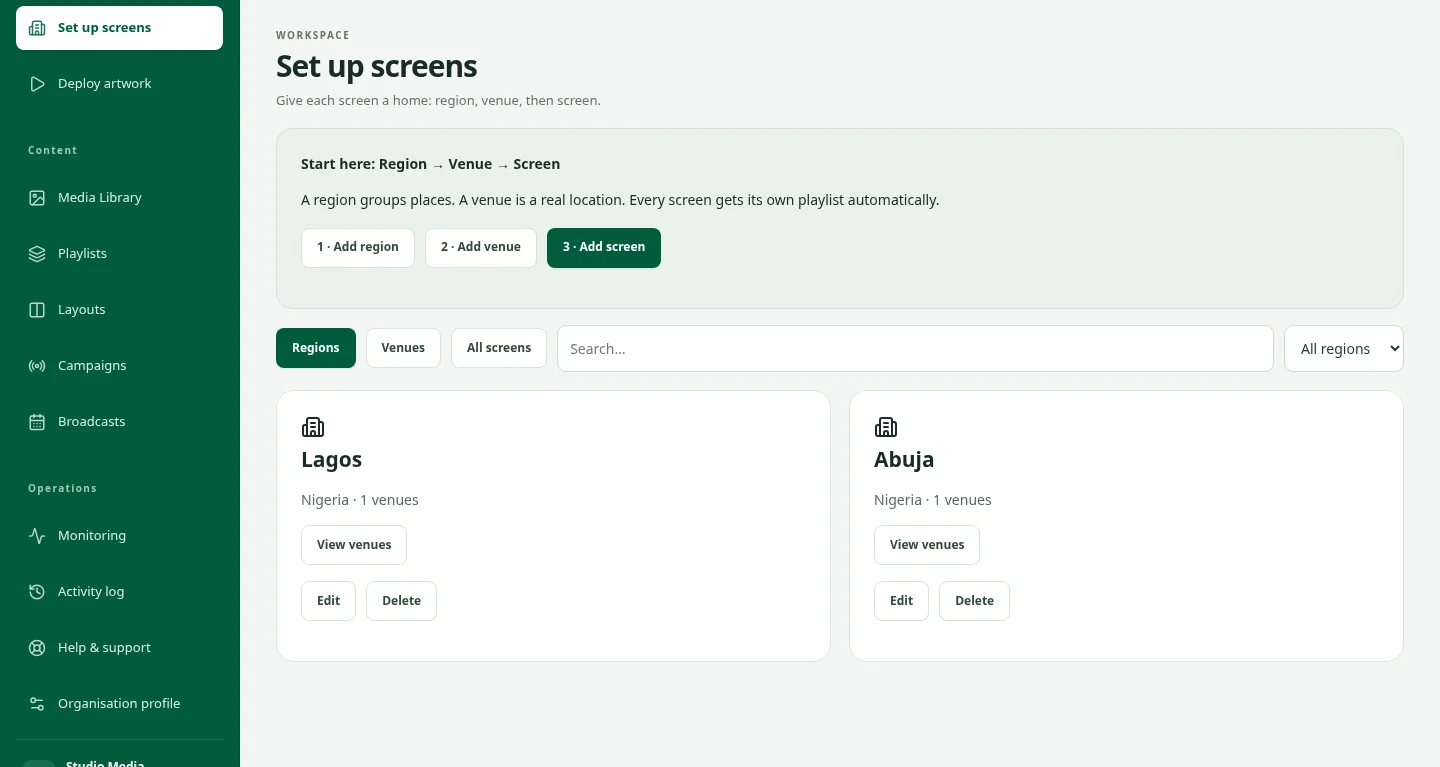
The marketplace is the public catalogue. Exchange is the account workspace for campaign plans, enquiries, approvals, accepted bookings and commercial records. Browse digital screens, static billboards, transit, street furniture, retail, cinema, hospitality and workplace media. Available inventory depends on the published listings; a directory city is not a promise of local stock. Read the exact listing, location, format, dimensions, rate period, restrictions and delivery terms. A listing can contain several media units.
Start the right journey.
Buyers can select Create buyer account and complete email verification without an invitation. Seller access and public listings go through the publisher review process. A listing enquiry or saved plan does not reserve inventory. Confirm dates, artwork acceptance and the final offer before paying through the account workflow. For media planning, campaigns or seller onboarding contact sales@dooxooh.com. General company questions go to info@dooxooh.com.
Search and narrow the results.
Use location or media terms, such as LED Lagos Nigeria, a media format or a published landmark. Search is not a directory of media-owner identities. Choose country and format, then refine currency, rate period, reference-rate range, size, lighting, rating or dates where offered. Compare rates only when currency and period match. Use More media to explore additional results. Country-qualified city pages distinguish places with the same name. Maps show only locations the publisher makes public.
Understand CMS-connected inventory.
Suitable CMS-connected digital inventory is prioritised among matching results because recorded playback can be reconciled. Explicit location and format requirements still matter. Use the CMS-connected-only filter when you specifically need that playback-reporting path. Other formats remain available for campaigns with different delivery needs. CMS connection is a playback capability, not proof that a screen is online now, physically visible or viewed by an audience. Seller verification, sponsorship and playback evidence mean different things.
Give the brief useful detail.
Explain your objective, audience, preferred locations, dates, media formats and creative requirements. Do not include passwords, customer lists or confidential campaign material. Select country, city, format, currency, dates, artwork category and a reference-rate limit where useful. Include a country for ambiguous city names. A reference-rate limit applies to the selected currency and period. It does not prove that the full campaign fits your total budget.
Review the suggestions.
Without AI consent, suggestions use published inventory and your filters. Consent allows the brief to be sent to the AI provider for suggestions; AI is optional. Read the match explanations and open each listing to check audience sources, restrictions, screen groups and terms. Narrow the search if the result says it covers a limited sample. Suggestions do not reserve space, guarantee audience reach, approve artwork or make a payment. Save and review your own media selection in Campaign studio.
Create your account.
Choose Create buyer account from the marketplace or Exchange buyer page. Register with your email and complete the verification steps shown. Continue with the listing you selected or browse published media in your buying workspace. You do not need to own a screen to buy advertising. Buyer registration does not grant publisher privileges or access to another organisation. Contact sales@dooxooh.com if you also want to sell inventory.
Keep access secure.
Complete the email code step when asked during sign-in. Never share passwords or verification codes with staff or assistants. If a code does not arrive, check spam, wait for the resend timer and use the sign-in recovery options. If delivery still fails, contact the team without sending the code. Use your own account. Organisation owners handle owner-only financial and organisation actions; other team members use their permitted access.
Understand the price.
A play-based offer is different from a day, week, month or campaign rate. Check the creative duration, included screens and buying unit. Peak hours may have a higher seller-declared rate in the location time zone. Review the peak schedule and the accepted campaign cost; a preview is not the final booking. Prepaid balances stay separate by currency. Do not add different currencies together or assume automatic conversion or worldwide payment availability.
Fund and follow the campaign.
Use only the payment and funding actions available in your account. The supported payment options and currency are shown before you continue; do not pay a trading partner outside Exchange. A payment attempt is not a confirmed payment. Check the order or funding status before retrying and keep the confirmation reference for a support request. For an accepted credit-funded campaign, review the reservation and remaining balance. Recorded completed eligible plays are reconciled against that campaign; audience estimates are not billable play reports. Credits reserved for a campaign, credits spent and cash returned are different states. Ask for a review through the account if the figures need investigation.
FROM YOUR DESK TO THE DISPLAY
Give your artwork somewhere to go.
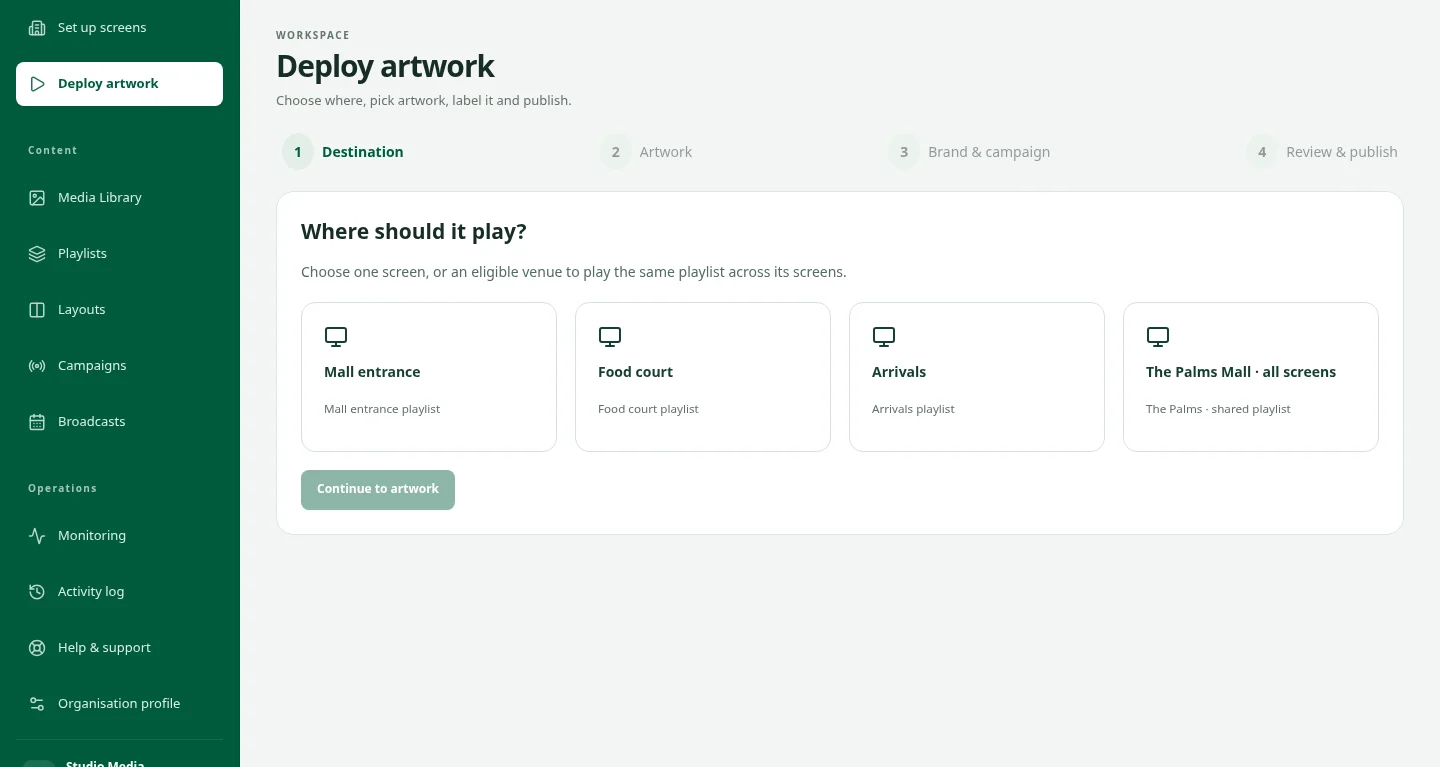
The idea is ready. Now choose the screens, organise the playback and keep the campaign in view. See how the pieces fit together in a private CMS demo.
Take a closer lookBrowse the DOOXOOH advertising marketplace
Explore published advertising opportunities without an account, then continue in Exchange when you are ready to plan or buy.
Read the guideFind suitable inventory by location and format
Search for the media and places that fit your campaign, with clear limits on what each listing can prove.
Read the guideUse Suggest media for a campaign brief
Turn your campaign goal into a shortlist using published inventory and optional AI assistance.
Read the guideCreate a buyer account and sign in
Buyers can join Exchange without a seller invitation or a CMS subscription.
Read the guideUnderstand play buying, credits and peak-hour prices
Where play buying is offered, choose a play target and review the exact currency, schedule and accepted cost before committing.
Read the guideMarketplace buying checklist
A practical checklist to keep with your campaign brief.
Download checklistGood questions. Clear answers.
Can these guides confirm my booking or payment?
No. Use your account for current order, approval, payment and delivery status. A public guide or assistant cannot access your account or change a transaction.
Who should I contact?
For campaigns, media buying or seller onboarding, email sales@dooxooh.com. For general enquiries, email info@dooxooh.com. Existing account issues belong in the workspace support workflow.
Keep exploring.
Buy DOOH Advertising | DOOXOOH Exchange
For advertisers, agencies and media buyers: find suitable screen inventory, prepare creative, request advertising bookings and follow delivery with DOOXOOH Exchange.
ExploreSell DOOH Screen Inventory | DOOXOOH Exchange
For screen owners, venue networks and publishers: offer advertising time, manage listings, review campaign artwork and follow delivery with DOOXOOH Exchange.
ExploreAdvertising Inventory Guide | DOOXOOH Exchange
Understand advertising formats, audience declarations, restrictions, synchronised screen groups and sponsored listings on the DOOXOOH marketplace.
ExploreCampaign Delivery & Buying Confidence | DOOXOOH Exchange
Learn what digital proof of play, offline reports, traditional field evidence, replacement choices and refund review mean for your DOOXOOH campaign.
ExploreRequest a demo
Request private access to explore the CMS with sample data.
ExploreStart a conversation.
Tell us what you have in mind.